
Alternative Payments - How to Add Bank Account and Card Information
Overview, Purpose, & Scope
This procedure guides customers of Next7 on how to enter their bank account and card information securely in the Alternative Payments Portal. This ensures smooth and timely processing of payments through the Next7 IT services billing system.
This procedure guides customers of Next7 on how to enter their bank account and card information securely in the Alternative Payments Portal. This ensures smooth and timely processing of payments through the Next7 IT services billing system.
-
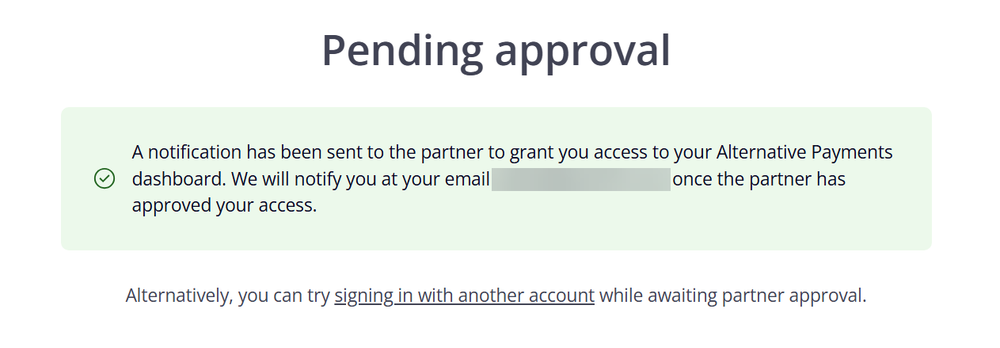
2Log in Using your Work Email AddressIf you are not a registered user under your account with Next7 IT, this will prompt a "Pending Approval". You may email [email protected] to grant the access.
If this is your first time to log in to the portal, this will prompt you to create a password or sign up without a password and a code will be sent to your email to proceed.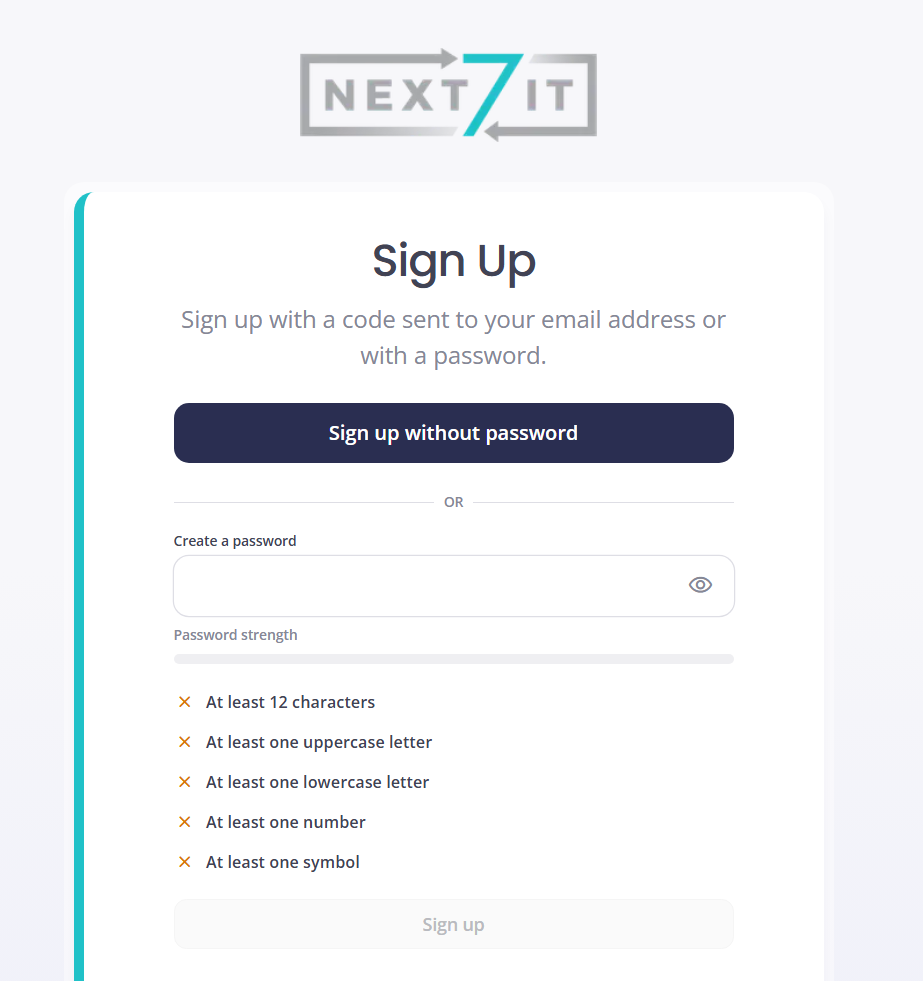
If you have already set up your password and MFA, follow the steps below.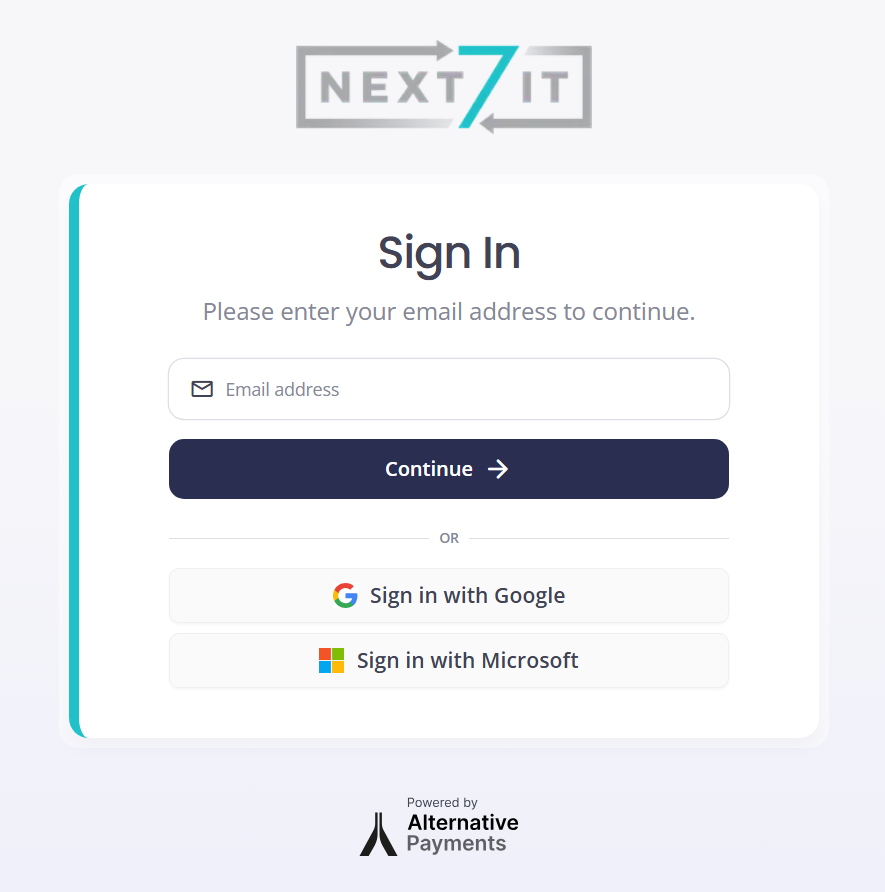
- Enter your work email address
- Click Continue
- Enter your password and MFA code.
-
3Add Card InformationEnter the necessary card information.
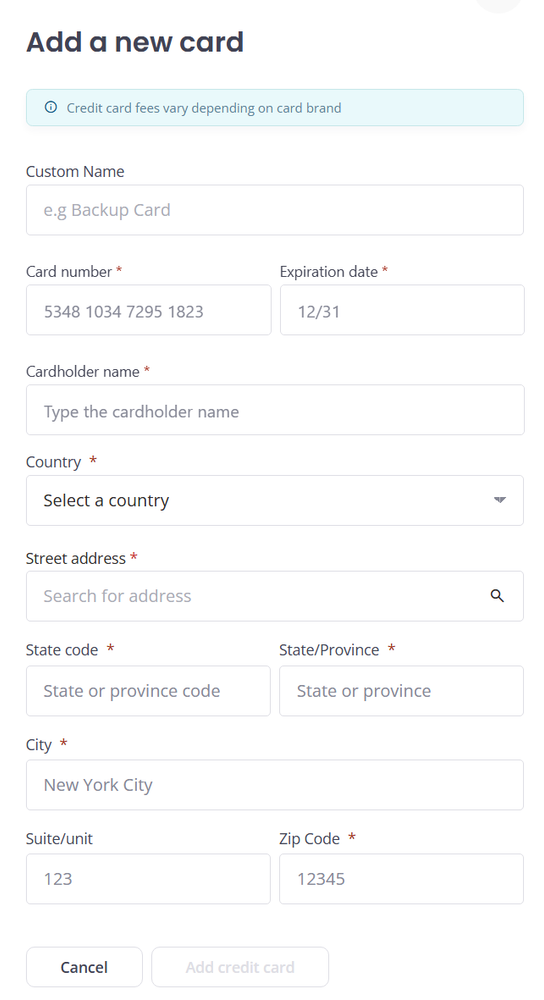
Please note that there will be a credit card fee depending on your card brand. To avoid this, you may prefer to use ACH.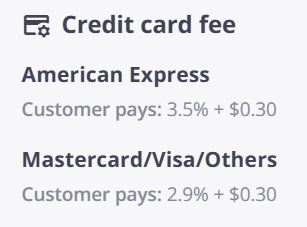
-
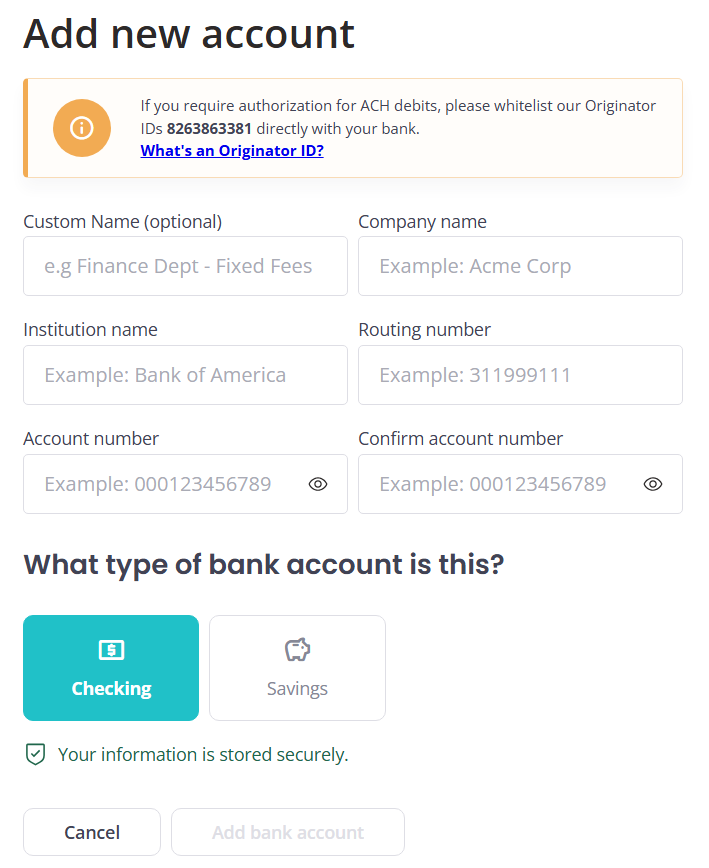
4Add Bank Account InformationEnter the necessary bank account information.
-
5Confirmation of Payment Details
- Double-check all entered details for accuracy in the payment section.
- Upon successful setup, your invoices will be processed automatically using your chosen payment method.
-
6End
Did this answer your question?